Getting started
The Bookings module is where a lead becomes a sale. It handles the full lifecycle of a property booking — plot or unit selection, pricing, co-applicants, KYC collection, payment scheduling, and approval.
1.3 — Booking statuses
Every booking carries a status that reflects where it is in the lifecycle:
| Status | Meaning |
|---|---|
| Draft | Booking created but not yet submitted for approval. The plot is held but not confirmed. |
| Pending Approval | Submitted and waiting for the approval workflow to complete. |
| Approved | Booking confirmed. Plot or unit is officially sold; payment schedule is active. |
| On Hold | Returned by an approver for corrections. Agent must amend and resubmit. |
| Cancelled | Booking has been cancelled. The plot or unit is released back to Available. |

The Bookings list
Bookings › All Bookings is the main working view. It shows every booking in your scope with its financial position and quick links to act.
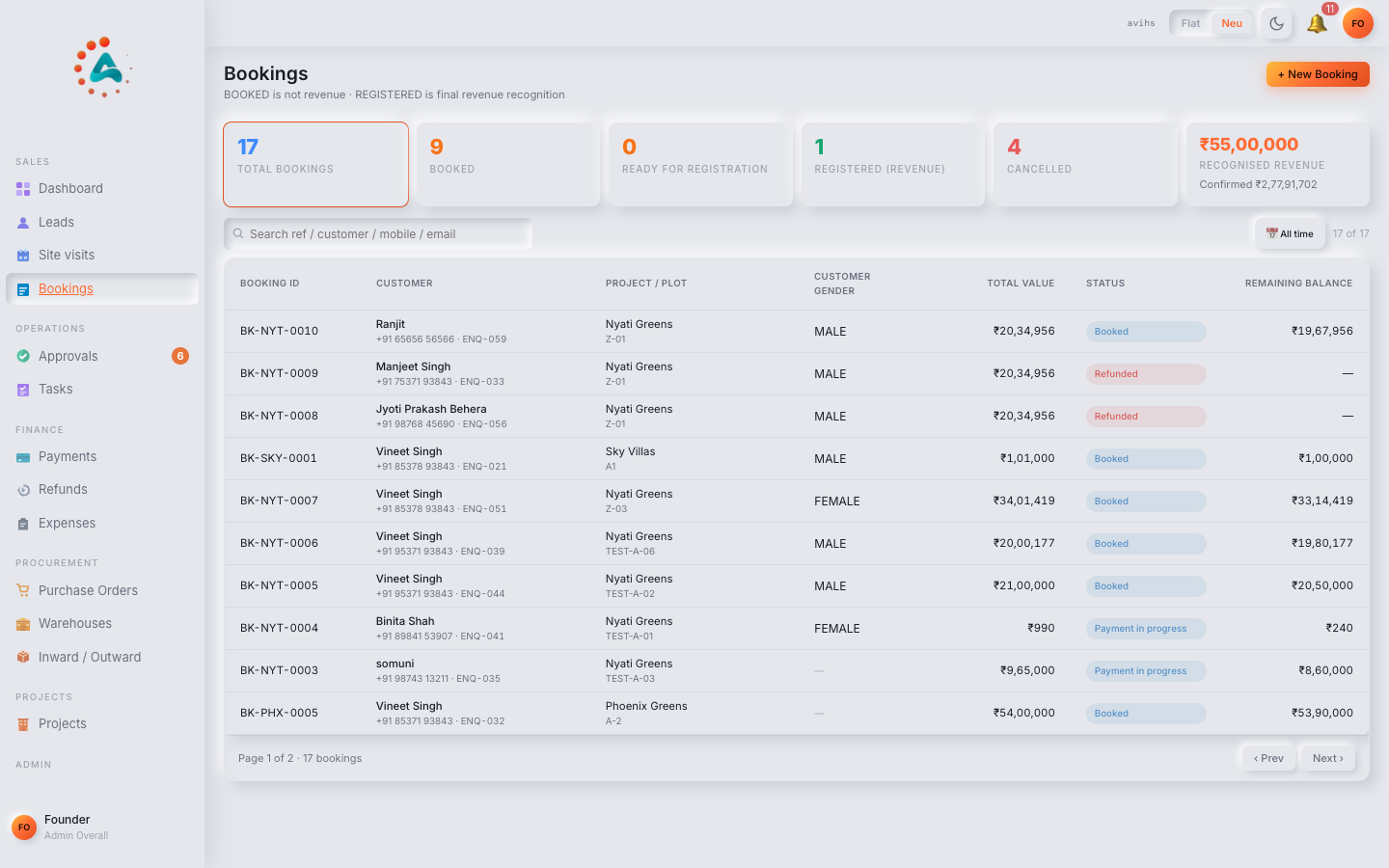 Web
Web
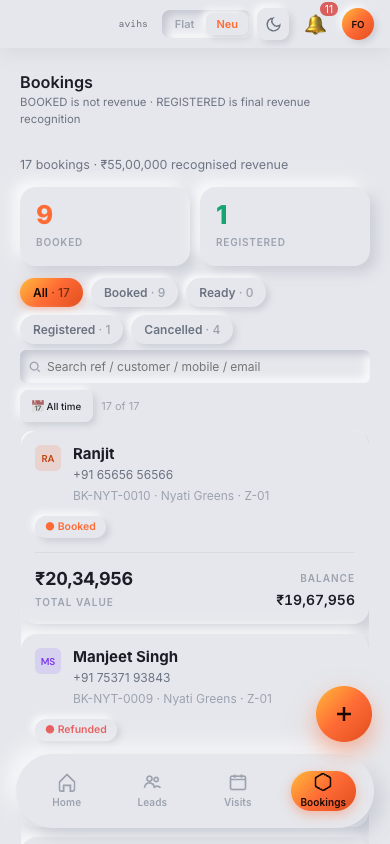 Mobile
2.2 — KPI strip
| Tile | What it shows |
|---|---|
| Total Bookings | All bookings in the current filter scope. |
| Pending Approval | Bookings submitted but not yet approved or returned. |
| Approved | Confirmed bookings with their total booked value. |
| Payments Due | Instalments due today or overdue across all approved bookings. |
| Collected (MTD) | Total payments recorded in the current calendar month. |
| Outstanding | Sum of all remaining balances across approved bookings. |
Clicking Payments Due or Pending Approval tiles jumps to the corresponding sub-page with the filter pre-applied.
2.3 — List columns
| Column | What it shows |
|---|---|
| Booking ID | Unique reference, e.g. BK-0018. Click to open the detail. |
| Customer | Primary applicant name and phone. |
| Project | The project the booking is for. |
| Plot / Unit | The specific plot number or unit code. |
| Sale Value | Agreed total sale price. |
| Collected | Payments received so far against this booking. |
| Outstanding | Sale Value minus Collected. |
| Next Instalment | Amount and due date of the next payment due. Overdue if past due date. |
| Status | Current booking status pill. |
| Agent | Sales agent who created the booking. |
| Booking Date | When the booking was created. |
| Actions | View opens the detail. Approval-pending bookings show Review for approvers. |
Filter the list using the status chips (All, Draft, Pending, Approved, On Hold, Cancelled), the project dropdown, or by typing in the search box (customer name, booking ID, or plot number).
Creating a booking
A booking can be created directly from a lead (the most common path) or from scratch via the Bookings list. Both routes produce the same booking record.
3.1 — Creating from a lead
Open the lead in Leads › All Leads and click Create Booking in the lead detail. The booking form opens with the customer's name, phone, email, and project interest pre-filled from the lead. Complete the remaining fields:
| Field | Notes |
|---|---|
| Project | Pre-filled from the lead. Change if the customer is buying in a different project. |
| Plot / Unit | Required — select the specific plot or unit from the project's available inventory. Only unbooked plots appear. |
| Sale Value (₹) | Required — the agreed sale price. May be pre-filled from the project's pricing configuration; override if a custom price was agreed. |
| Booking Amount (₹) | The initial token or booking payment due at signing, separate from the full sale value. |
| Booking Date | The date the booking agreement is signed. Defaults to today. |
| Payment Plan | Select the payment plan template (e.g. 30-30-40, milestone-linked, custom). This auto-generates the instalment schedule. |
| Agent | Pre-filled from the lead's assigned agent. Change if a different agent is closing the sale. |
| Notes | Any deal-specific notes for the approval team — negotiated price, special terms agreed. |
Click Save as Draft to hold the plot and return later, or Save & Submit to send the booking directly into the approval workflow.
3.2 — Direct creation (without a lead)
From Bookings › All Bookings, choose + New Booking. The same form appears but customer details must be entered manually. You can optionally link to an existing lead using the Linked Lead field — this keeps the lead and booking connected in reporting even if the booking was created separately.
3.3 — Adding co-applicants
After the booking is saved (Draft or Pending), open it and go to the Co-Applicants tab. Click + Add Co-Applicant to add a joint buyer or co-owner:
| Field | Notes |
|---|---|
| Full Name | Required. |
| Relationship | Relation to the primary applicant — Spouse, Parent, Sibling, Business Partner, Other. |
| Phone / Email | Co-applicant's contact details. |
| PAN / Aadhaar | KYC identifiers for the co-applicant. Can be added now or filled in the KYC tab later. |
A booking can have multiple co-applicants. Each one requires their own KYC documents before the booking can be submitted for approval.
Booking detail
The booking detail page is the single source of truth for a sale — customer, property, financials, KYC, payment history, and the activity log, all in one place.
4.2 — Plot / unit info
The Property panel (top of the detail page) shows:
- Project — the project name and a link to its workspace.
- Plot / Unit — the specific plot number or unit code, its type (e.g. Residential Plot, Villa, Apartment), area in sq ft or sq m, and facing direction.
- Floor / Block — for multi-storey projects, the block and floor number.
- Status — always Booked once a booking exists, even in Draft. Changes to Available only if the booking is cancelled.
4.3 — Pricing summary
The Pricing panel summarises the financial position of the booking:
| Field | What it shows |
|---|---|
| Base Price | Price per sq ft × area from the project's pricing configuration. |
| Add-ons | Any charges added on top — corner plot premium, floor rise, car parking, amenity fee. |
| Discounts | Any negotiated discounts recorded at the time of booking. |
| Sale Value | The agreed total: Base Price + Add-ons − Discounts. |
| Booking Amount | The initial token amount due at signing. |
| Collected | Total payments received so far. |
| Outstanding | Sale Value minus Collected. |
The pricing summary is read-only after the booking is approved. Pricing corrections on an approved booking must go through an amendment request — contact your workspace admin.
KYC & Documents
KYC (Know Your Customer) is the identity and document collection step. Completing KYC for the primary applicant and all co-applicants is required before a booking can be approved.
5.2 — KYC fields
Open the booking and go to the KYC tab. Fill in the identity details for the primary applicant:
| Field | Notes |
|---|---|
| Full Legal Name | As it appears on official government ID. |
| Date of Birth | Required for identity verification. |
| PAN Number | Required for transactions above ₹50,000 per IT rules. |
| Aadhaar Number | 12-digit Aadhaar. Last 8 digits are masked after saving. |
| Address | Current residential address — street, city, state, PIN. |
| Occupation | Salaried, Self-employed, Business, Retired, Other. |
| Annual Income | Optional — used for loan eligibility assessment. |
Repeat for each co-applicant by switching to their tab within the KYC section. A completion indicator shows how many applicants have complete KYC.
5.3 — Uploading KYC documents
Below the KYC fields, the Documents section lists the required documents and their upload status. Click Upload on any row to attach the file (PDF, JPG, or PNG; max 10 MB per file):
| Document | Required for |
|---|---|
| PAN Card | All applicants. |
| Aadhaar Card (front & back) | All applicants. |
| Address Proof | All applicants — utility bill, bank statement, or passport (not older than 3 months). |
| Passport Photo | All applicants. |
| Income Proof | If a home loan is being applied for — salary slips (3 months) or ITR (2 years). |
| Booking Form (signed) | The signed booking agreement form. Upload the scanned copy after the customer signs. |
Uploaded documents show a Uploaded tag. Documents that are pending show Pending. All required documents must be uploaded before you can submit for approval.
Payment schedule
The payment schedule breaks the total sale value into instalments with due dates. It is generated from the payment plan selected at booking and becomes active once the booking is approved.
6.2 — Understanding instalments
Open the booking and go to the Payment Schedule tab. The schedule is a table of instalments, one per row:
| Column | What it shows |
|---|---|
| Instalment | Name of the instalment — e.g. Booking Amount, 30-day instalment, Possession. |
| Due Date | When the payment is expected. For milestone-linked plans, this updates when the milestone is reached. |
| Amount Due (₹) | The instalment amount. Usually a fixed sum or a percentage of the sale value. |
| Paid (₹) | Amount received against this instalment. Partial payments are tracked. |
| Balance (₹) | Amount Due minus Paid for this instalment. |
| Status | Upcoming Due Overdue Paid |
The schedule is read-only once the booking is approved. To adjust instalment dates or amounts after approval, contact your workspace admin — changes require an amendment.
6.3 — Recording a payment
When the customer makes a payment, record it in blink i immediately so the schedule stays accurate. On the Payment Schedule tab, click Record Payment on the relevant instalment (or on the booking header for a general payment).
| Field | Notes |
|---|---|
| Payment Date | Required — when the customer paid. Can be backdated. |
| Amount Received (₹) | Required — the actual amount received. Can be partial. |
| Payment Mode | How payment was made — see 6.4. |
| Reference / UTR | Transaction reference, cheque number, or UTR for bank transfers. Important for reconciliation. |
| Instalment | Which instalment this payment is against. Pre-filled from the row you clicked; change if the customer is paying a different instalment. |
| Notes | Any additional context — e.g. "Cheque received, pending clearance". |
Click Save Payment. The instalment's Paid and Balance figures update immediately, the booking's overall Collected and Outstanding update, and the payment appears in the activity log. If the payment fully covers the instalment, its status moves to Paid.
6.4 — Payment modes
| Mode | When to use |
|---|---|
| Bank Transfer / NEFT / RTGS | Wire transfers. Capture the UTR number in the Reference field. |
| UPI | Instant UPI payments. Capture the UPI transaction ID. |
| Cheque | Dated cheques. Capture the cheque number and bank name. Note the clearance date in the Notes field. |
| Cash | Cash payments. Only for amounts within legal cash transaction limits. |
| Demand Draft | DD payments. Capture the DD number and bank. |
| Home Loan Disbursement | Payment disbursed directly from the customer's bank loan. Record the disbursement date and lending bank. |
Approval workflow
Bookings go through an approval workflow before they are confirmed. The workflow ensures the right people review the deal, the KYC documents, and the pricing before the sale is locked.
7.1 — Submitting for approval
Once the booking form is complete and all KYC documents are uploaded, click Submit for Approval on the booking detail. blink i validates that required fields and documents are present before allowing submission. If anything is missing, a checklist highlights the gaps.
On successful submission:
- The booking status moves to Pending Approval.
- The first approver in the configured workflow is notified.
- The booking appears in Bookings › Pending Approval for approvers.
- The submitting agent can no longer edit the booking while it is pending.
7.2 — Reviewing, approving & returning
Approvers see pending bookings in Bookings › Pending Approval and via the Pending Approvals tile on the Home Dashboard. Open a booking and review the detail, KYC documents, and pricing. Three actions are available:
| Action | What happens |
|---|---|
| Approve | Booking is confirmed. Status moves to Approved. The payment schedule becomes active and the plot is marked as sold. Agent and customer are notified. |
| Return for Correction | Booking is sent back to the agent with a note explaining what needs to change. Status moves to On Hold. The agent edits the booking and resubmits. |
| Reject | Booking is rejected permanently. Status moves to Cancelled and the plot is released. Use only when the booking should not proceed at all. |
If the approval workflow has multiple steps (e.g. Sales Manager → Finance Head), the booking moves to the next step after each approval. The approval history panel on the booking detail shows every decision and comment.
Cancelling a booking
Cancellation permanently closes the booking and releases the plot or unit back to Available inventory. It cannot be undone — use it only when the customer has definitively withdrawn.
8.1 — How to cancel
Open the booking and click Cancel Booking (visible on Draft and Approved bookings; Pending Approval bookings must be returned first). A confirmation form appears:
| Field | Notes |
|---|---|
| Cancellation Reason | Required — select from the list: Customer withdrew, Financing fell through, Duplicate booking, Administrative error, Other. |
| Cancellation Date | When the cancellation takes effect. Defaults to today. |
| Forfeiture Amount (₹) | Amount from payments already collected that will be forfeited per the cancellation policy. Set to 0 if a full refund is being given. |
| Refund Amount (₹) | Amount to be refunded to the customer. Auto-calculated as Collected minus Forfeiture but can be adjusted. |
| Notes | Any additional context or customer communication summary. |
Confirm cancellation. The booking status moves to Cancelled, the plot returns to Available, and a cancellation record is appended to the activity log. The associated lead (if any) moves back to Visit Done so the agent can continue working the customer.
The full booking flow
From lead conversion to collection — the complete journey of a booking through blink i.
-
Convert the lead — on the lead detail, click Create Booking. Customer details pre-fill. Select the project, plot, sale value, and payment plan. Save as Draft to hold the plot.
-
Collect KYC — go to the KYC tab. Fill in the primary applicant's identity fields and upload all required documents. Repeat for any co-applicants added under the Co-Applicants tab.
-
Submit for approval — once KYC is complete, click Submit for Approval. blink i checks for missing fields and documents. On success, the booking moves to Pending Approval and the first approver is notified.
-
Approver reviews — the approver opens the booking, reviews the deal and KYC, and either Approves (moves to Approved) or Returns for Correction (moves to On Hold for the agent to fix and resubmit).
-
Payment schedule activates — once approved, the instalment schedule is live. The first instalment (usually the Booking Amount) shows as Due on the schedule.
-
Record each payment — as the customer pays each instalment, the finance team clicks Record Payment on the relevant row, enters the amount, mode, and transaction reference. The balance updates immediately.
-
Final instalment clears — when all instalments reach Paid, the booking's Outstanding balance is zero. The sale is fully collected and the booking is complete.
The booking detail — customer, property, financials, KYC, payment history, and activity log — remains accessible after completion for reference, audit, and customer service.