Getting started
Document Control in blink i tracks the full lifecycle of physical and digital documents — from collection at the point of booking, through verification and safe-keeping, to final delivery back to the customer. Every handoff is logged with a timestamp and the name of the person who acted, giving you a complete custody trail at all times.
1.2 — Where to find documents
Documents exist in two contexts in blink i:
| Context | Where | What it covers |
|---|---|---|
| Booking documents | Bookings › [Booking] › Documents tab | KYC documents and signed forms collected from a specific customer for a specific booking — PAN, Aadhaar, address proof, booking form, income proof, photo. |
| Project documents | Projects › [Project] › Documents tab | Legal, regulatory, and marketing documents that belong to the project as a whole — RERA certificate, title deed, layout approval, brochure, pricing sheet. |
| Document register | Documents › Register | A cross-booking, cross-project view of all documents in the workspace. Filter by status, kind, or holder to see exactly what is outstanding at any given time. |
1.3 — Document statuses
Every document moves through a fixed status progression. Not all documents reach every status — a document that is rejected at any point becomes terminal and cannot be advanced further.
| Status | Meaning | Who acts to advance |
|---|---|---|
| Pending | Document registered in blink i but not yet sent to or received from the customer. The record exists; the physical document does not yet. | Any team member — send to the customer to move it to With Customer. |
| With Customer | The document has been dispatched to or is currently held by the customer. Waiting for them to sign and return it. | Finance / Admin — mark Received once the physical document is in hand. |
| Received | The physical document has been collected from the customer and is in the office. Awaiting review and verification. | Finance / Admin — mark Verified once the document has been checked and found correct. |
| Verified | The document has been reviewed and confirmed as correct, complete, and authentic. Ready for filing or delivery. | Finance / Admin — mark Delivered once the document has been handed to the customer or filed. |
| Delivered | Terminal. The document has been returned to or delivered to the customer, or filed permanently. No further transitions. | — |
| Rejected | Terminal. The document was found to be incorrect, incomplete, or inauthentic. A rejection reason is recorded. A new document record must be created to restart the process. | — |

Booking documents
Booking documents are the KYC and legal papers collected from a customer as part of a property booking. They are linked to a specific booking and appear in that booking's Documents tab.
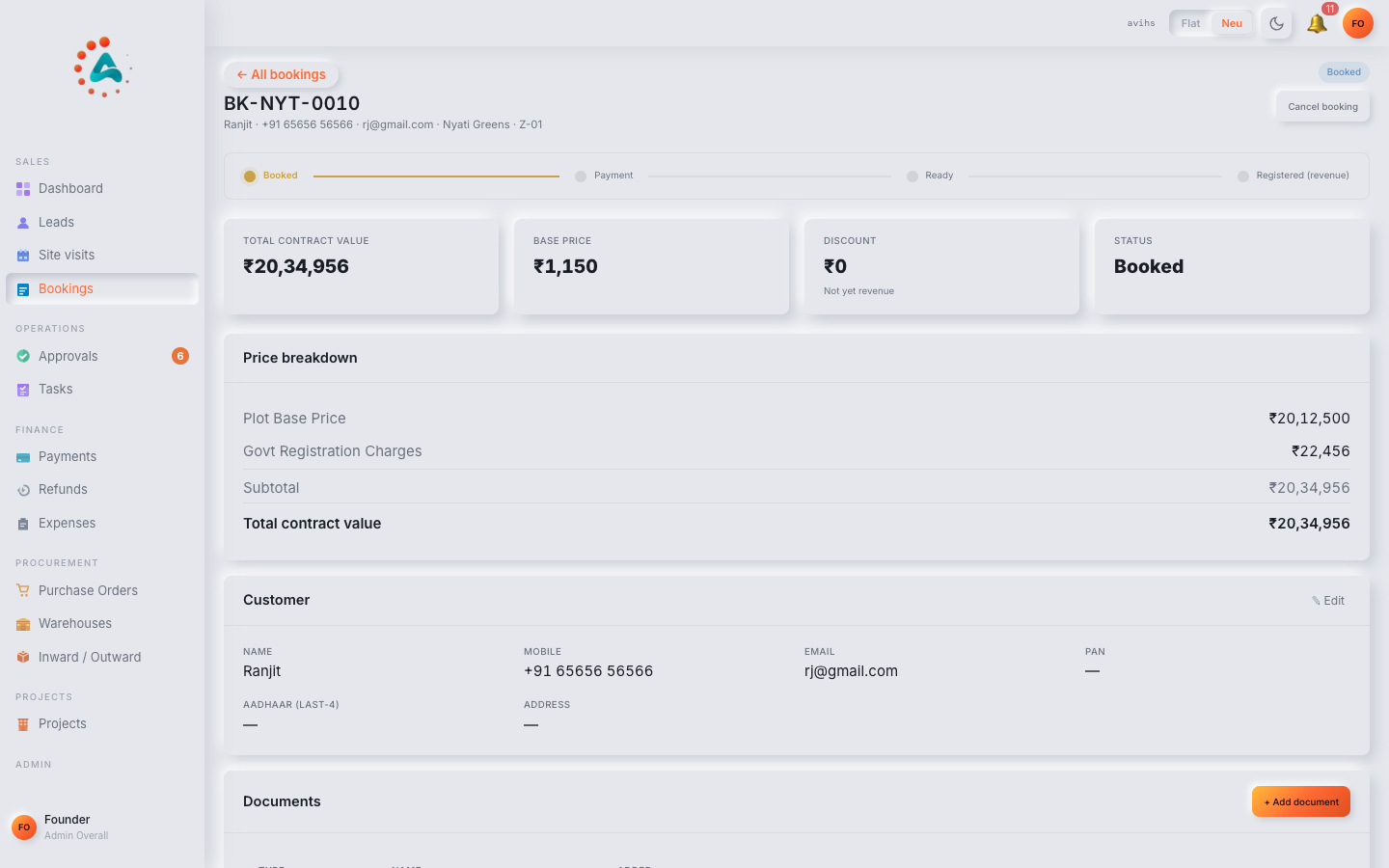 Web
Web
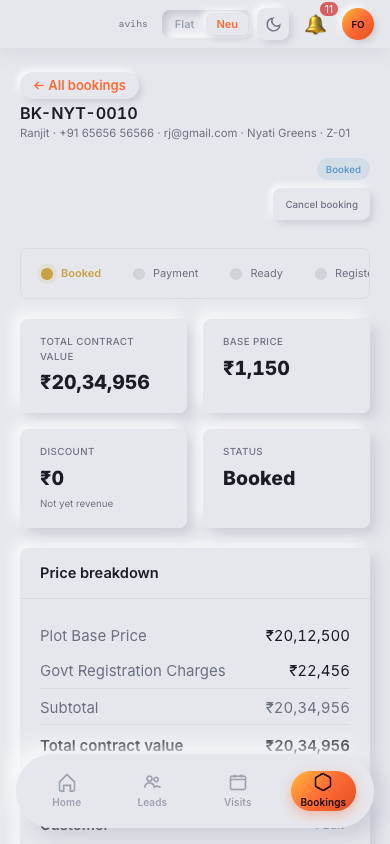 Mobile
2.1 — Required documents
When a booking is created, blink i automatically registers the standard required documents as Pending records. These must all reach Verified status before the booking can be submitted for approval. Standard required documents:
| Document | Kind code | Notes |
|---|---|---|
| PAN Card | pan | Front side. Name must match the customer record. |
| Aadhaar Card | aadhaar_front / aadhaar_back | Both sides required. Number stored masked (last 4 digits only). |
| Address Proof | address_proof | Utility bill, bank statement, or government-issued address document not older than 3 months. |
| Photograph | photo | Recent passport-size photograph. |
| Income Proof | income_proof | Last 3 months' salary slips or latest ITR. Required for home loan cases. |
| Signed Booking Form | booking_form | The booking form signed by the customer. Must be uploaded before final approval. |
Additional documents can be added manually to any booking — for example a co-applicant's KYC, a power of attorney, or a loan sanction letter. Click + Add Document on the Documents tab, enter a label, select the kind, and save.
2.2 — Uploading a digital copy
Each document record can have a digital file attached — a scanned PDF, JPEG, or PNG. The file is stored securely in the workspace's private storage bucket and is never publicly accessible.
-
Open the document record — click on any document row in the booking's Documents tab.
-
Click Upload — a file picker opens. Select the scanned file. Accepted formats: PDF, JPG, PNG. Maximum size: 20 MB per file.
-
File is uploaded — once processed, a Preview and Download button appear on the document record. The file is linked to this document only and visible to team members with document access.
2.3 — Custody & handoffs
The Current Holder field on each document records which team member physically holds the original document at any point in time. This is separate from the document's status — a document can be Received and held by a Sales Agent who collected it before handing it to Finance.
To record a custody handoff:
-
Open the document record.
-
Click Edit and change the Current Holder field to the team member who now holds the physical document.
-
Save — the change is logged in the activity trail with the previous holder, the new holder, and the timestamp.
Best practice: update the Current Holder every time the physical document changes hands — when an agent collects it from the customer, when it is handed to Finance, and when it is filed or returned.
2.4 — Receiving & verifying
Once the physical document is in hand and the digital scan has been uploaded, Finance or Admin should advance the document through Received → Verified:
| Action | Button | What it checks |
|---|---|---|
| Mark Received | Receive | Confirms the physical document is in your possession. Sets received_at timestamp. Status moves to Received. |
| Mark Verified | Verify | Confirms the document has been checked — name matches the customer record, document is not expired, photo is clear and legible, signature is present where required. Records verified_by (your name) and verified_at. |
2.5 — Delivering to the customer
Once all documents on a booking reach Verified, the original physical documents may need to be returned to the customer — for example, originals collected for review that are not retained by the company. To close the loop:
- Open the document record and click Mark Delivered. This sets the
delivered_attimestamp and moves the document to the terminal Delivered state. - Add a note if relevant — e.g. "Returned originals in person on 12 Aug. Courier tracking AWB-00123."
- For documents that are filed and retained (not returned), also mark them Delivered once they are in permanent safe-keeping — the Delivered status means the document process is complete, not necessarily that it was physically returned to the customer.
2.6 — Rejecting a document
Reject a document when it cannot be accepted in its current form — the image is illegible, the name does not match, the document is expired, or it is fraudulent.
- Click Reject on the document record. A reason field is required — be specific: "PAN card blurry — re-scan needed" or "Aadhaar name does not match booking name: Ravi vs Ravindran".
- The document moves to Rejected (terminal). The rejection reason is logged in the activity trail and visible to the booking's assigned agent.
- The agent is notified to collect a corrected document from the customer. A new document record must be created — the rejected record cannot be reused.
- The booking remains in its current status while documents are outstanding. It cannot be submitted for approval until all required documents are Verified.
kind as the rejected one (e.g. pan) so the requirement is properly tracked. Creating it under other bypasses the required-document check.Project documents
Project-level documents are not tied to a specific customer or booking — they belong to the project itself. RERA certificates, title deeds, layout approvals, and marketing materials all live here.
3.1 — Adding a project document
Navigate to Projects › [Project] › Documents and click + Add Document. Fill in:
| Field | Notes |
|---|---|
| Label | A human-readable name for this document. E.g. "RERA Certificate — Phase 1", "Title Deed — Survey No. 42". |
| Category | The document category (see 3.2). Determines whether this document is required for the project to be marked sale-ready. |
| Visibility | Who can view this document (see 3.3). |
| Expiry date | Optional — set for any document that expires (RERA certificate, insurance, environmental clearance). blink i will flag it when approaching expiry. |
| Notes | Internal notes — e.g. issue date, issuing authority, reference number. |
After saving, upload the digital file using the same upload flow as booking documents (see 2.2). Then advance the status through the same Pending → Received → Verified → Delivered lifecycle.
3.2 — Document categories
Categories classify project documents and control whether they block the project's sale-ready status. The default categories are:
| Category | Required for sale-ready | Expiry required | Typical documents |
|---|---|---|---|
| Legal | Yes | No | Title deed, encumbrance certificate, land conversion order. |
| Legal — RERA certificate | Yes | Yes | The RERA registration certificate. Must be valid (not expired) for the project to be sale-ready. |
| Approval | No | No | Building plan approval, layout approval, fire NOC. |
| Approval snapshot | No | No | Timestamped PDF snapshots of online approval portals for audit purposes. |
| Pricing | No | No | Signed pricing schedules, cost sheets, floor-wise rate lists. |
| Marketing | No | No | Brochures, site maps, renders, floor plans shared with customers. |
| Other | No | No | Anything that doesn't fit the above categories. |
Workspace administrators can add or rename categories under Settings › Document Categories. The Required for sale-ready and Expiry required flags are configurable per category.
3.3 — Visibility settings
Each project document has a visibility level that controls who can see it within blink i. This is separate from public access — all documents are private to the workspace regardless of visibility setting.
| Visibility | Who can view | Typical use |
|---|---|---|
| Internal | Finance Head and Founder only. | Title deed, sensitive legal documents, cost sheets. |
| Sales team | All sales roles (Sales Manager, Sales Agent) and above. | Floor plans, pricing schedules, layout approval — useful for agents to answer customer questions. |
| Customer | All team members. Document is also flagged as shareable with customers. | Brochures, renders, RERA certificate — documents commonly shared during the sales process. |
| Restricted | Founders and explicitly named users only. | Pending legal disputes, confidential board-level documents. |
3.4 — Expiry & renewal
Documents with an expiry date are automatically flagged as the expiry approaches. blink i sends an in-app alert 60 days before expiry and again at 30 and 7 days. The document register shows an Expiring soon badge for documents within 60 days of expiry.
To renew an expired or expiring document:
-
Open the expiring document and click Renew. blink i creates a new document record pre-filled with the same label, category, and kind — linked to the original via a renewed from pointer for audit continuity.
-
Upload the renewed document file and set the new expiry date.
-
Advance to Verified — once the renewed document is verified, the original is automatically archived. The project's sale-ready status is re-evaluated against the new document.
Register & audit
The document register gives you a workspace-wide view of every document — across all bookings and projects — so you can see at a glance what is outstanding, overdue, or expiring.
4.1 — The document register
Navigate to Documents › Register. The register lists every document with its current status, current holder, linked booking or project, and key timestamps.
| Column | What it shows |
|---|---|
| Document | The label and kind code. Click to open the full document record. |
| Linked to | The booking reference (e.g. BK-0042) or project name this document belongs to. |
| Category | Document category (project documents only). |
| Status | Current status pill. |
| Current holder | The team member who physically holds the original, if set. |
| Expected by | The date the document is expected to be received, if set. Overdue if past this date and still Pending or With Customer. |
| File | Paperclip icon if a digital copy has been uploaded. |
| Expiry | Expiry date and days remaining. Red if expired, amber if within 60 days. |
4.2 — Audit trail
Every action on a document — status transition, holder change, file upload, note added, rejection — is recorded in the document's activity log. Open any document record and scroll to the Activity panel at the bottom.
Each entry shows:
- Who performed the action — full name and role.
- What changed — e.g. "Status changed: Received → Verified", "Holder changed: Priya → Finance Dept", "File uploaded: pan_scan.pdf".
- When — date and time (IST), precise to the second.
- Notes — any note recorded at the time of the action.
The audit trail is immutable — entries cannot be edited or deleted. It provides a complete, tamper-evident record of every document's journey through the workspace, which is important for RERA compliance audits and internal due diligence.
4.3 — Filtering & export
The document register supports the following filters:
| Filter | Options |
|---|---|
| Status | Pending, With Customer, Received, Verified, Delivered, Rejected. Multi-select. |
| Scope | Booking documents only, Project documents only, or All. |
| Project | Limit to documents linked to a specific project (or its bookings). |
| Current holder | Filter to documents held by a specific team member — useful for the handoff checklist when someone goes on leave. |
| Has file | Yes / No — quickly find records where no digital copy has been uploaded yet. |
| Expiry | Expired, Expiring within 30 days, Expiring within 60 days. |
| Category | Project document category. |
Click Export CSV to download the filtered list. The export includes all visible columns plus the document ID, booking ID, project ID, and all timestamps — suitable for an external document tracking spreadsheet or a RERA compliance submission.
Full document flow
A complete booking document lifecycle — from booking creation to final verification — showing every action and state change.
-
Booking is created — blink i automatically registers 6 required document records (PAN, Aadhaar front, Aadhaar back, address proof, photo, income proof, booking form), all in Pending status. Agent is notified to collect them.
-
Agent requests documents from the customer — sends a WhatsApp message or calls. Updates each document to With Customer (using the Send action) and sets themselves as Current Holder once collected. Sets Expected by date for each.
-
Customer provides documents — agent collects physical originals and scans. Uploads the scan for each document record. Updates Current Holder to themselves.
-
Agent hands documents to Finance — physically passes the originals and updates Current Holder to the Finance team member. Finance is now responsible for verification.
-
Finance receives — clicks Receive on each document. Status moves to Received and
received_atis stamped. -
Finance verifies — checks each document against the verification checklist: name match, not expired, legible image, correct pages. Clicks Verify on each. Status moves to Verified. Their name is recorded as
verified_by. -
One document is rejected — the Aadhaar front is blurry. Finance clicks Reject, records reason: "Image unreadable — glare on top-left corner". Document moves to Rejected. Agent is notified and re-collects a clear scan from the customer. A new document record is created, scanned, received, and verified.
-
All documents verified — the booking's Documents tab shows all required documents as Verified. The booking can now be submitted for approval (see Approvals guide). The submit button was blocked until this point.
-
Booking approved — Finance files the physical documents and marks each as Delivered (filed). Originals that need to be returned (e.g. identity documents used for review only) are returned to the customer and also marked Delivered with a note on the date of return.