Getting started
Site visits are the critical middle step between an interested lead and a committed buyer. blink i tracks every visit — scheduled, completed, no-show, or rescheduled — and links it back to the lead so the full conversion journey is visible in one place.
1.3 — Visit statuses
Every visit record has a status that reflects where it currently stands:
| Status | Meaning |
|---|---|
| Scheduled | Visit is booked for a future date. The lead's stage is Visit Scheduled. |
| Completed | Visit took place. Outcome and notes have been recorded. Lead moves to Visit Done. |
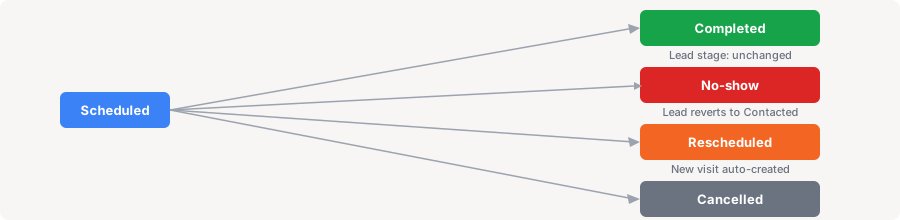
| No-show | Lead did not arrive. A follow-up prompt is triggered automatically. |
| Rescheduled | Visit was moved to a new date. The original visit is closed as Rescheduled; a new Scheduled visit is created. |
| Cancelled | Visit was cancelled with no replacement. Lead stage reverts to its pre-visit stage. |
The Visits list
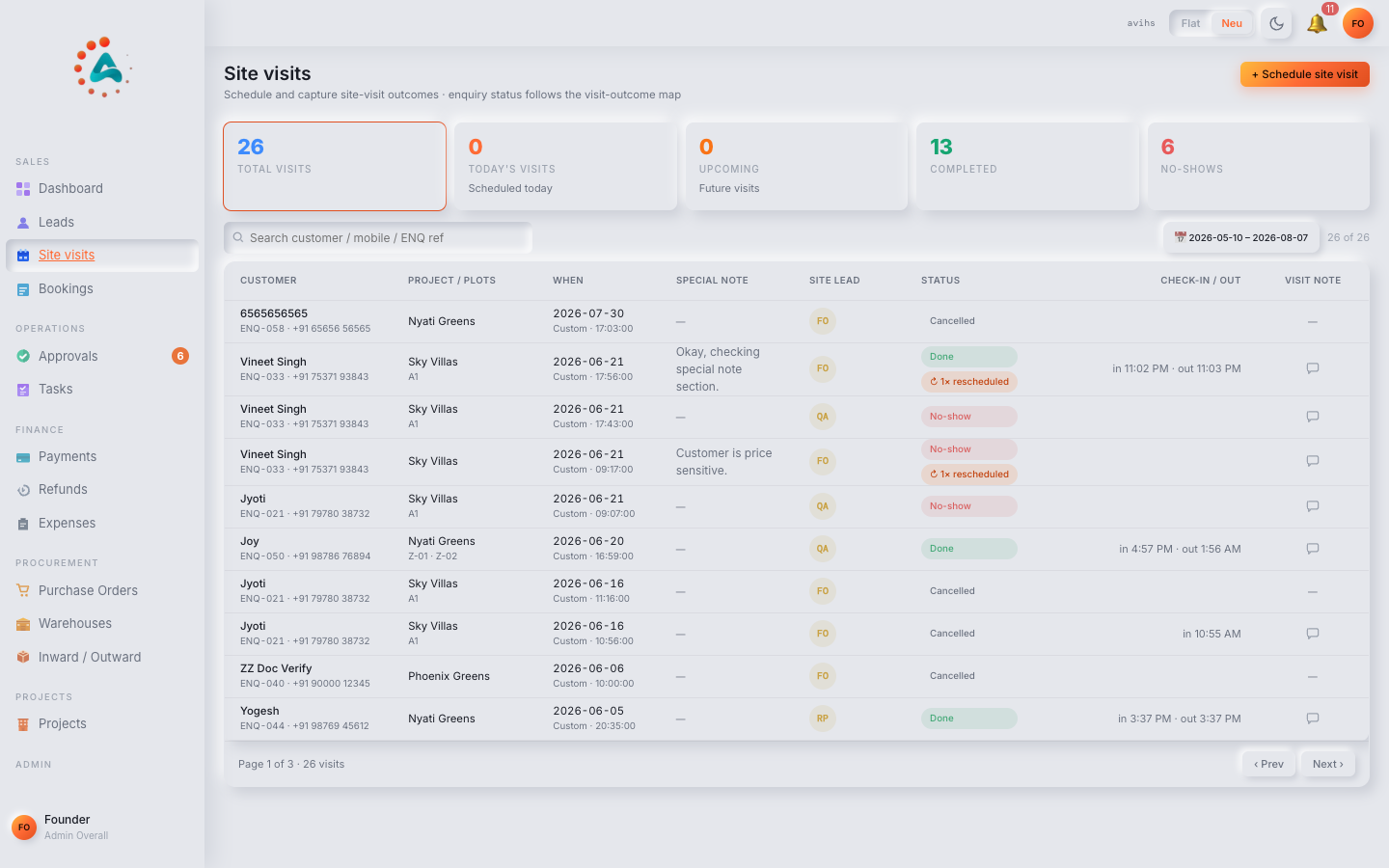
Leads › Site Visits gives an operations-level view of all visits — what is coming up, what happened today, who did not show, and what needs to be rescheduled.
 Web
Web
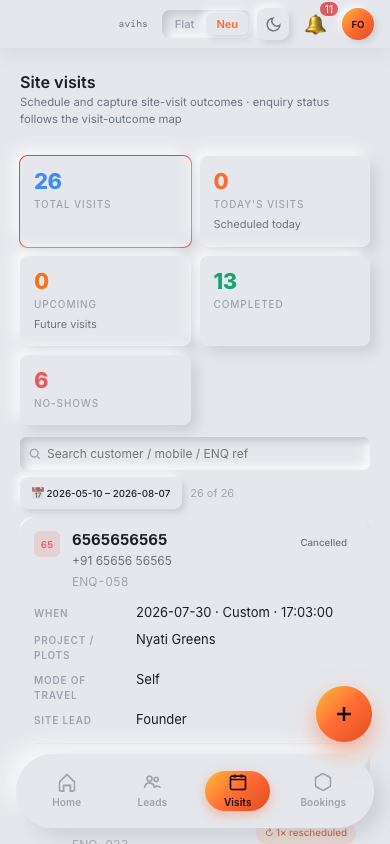 Mobile
2.2 — KPI strip
| Tile | What it counts |
|---|---|
| Total Visits | All visits in the current date range and project filter. |
| Upcoming | Visits scheduled for today or a future date that have not yet been given an outcome. |
| Completed | Visits marked as Completed in the date range. |
| No-shows | Visits where the lead did not arrive. A high no-show rate may indicate a qualification or confirmation problem. |
| Rescheduled | Visits moved to a new date in the date range. |
| Today | Visits scheduled for today specifically — the day's agenda at a glance. |
Click any tile to filter the list below to that subset. Click the tile again to clear the filter.
2.3 — List columns
| Column | What it shows |
|---|---|
| Visit ID | Unique reference, e.g. SV-0031. Click to open the visit detail. |
| Lead | The lead's name and a link to their lead detail page. |
| Phone | Lead's contact number for quick reference on the day. |
| Project | The project being visited. |
| Visit Date | Scheduled date (and time if set). Visits today are highlighted. |
| Agent | The agent conducting the visit. |
| Status | Current visit status pill. |
| Check-in | Recorded check-in time, if the agent has checked the lead in on the day. |
| Outcome | For completed visits: the recorded outcome summary. |
| Actions | View opens the detail. Record Outcome appears for Scheduled visits on or past their date. |
2.4 — Filters
- Status chips — All, Scheduled, Completed, No-show, Rescheduled, Cancelled.
- Date range — scope to Today, This week, This month, or a custom range. Use Today as the daily operations view.
- Project — filter to visits for a specific project.
- Agent — managers can filter to a single agent's visits.
- Search — by lead name, phone, or visit ID.
Scheduling a visit
The most common path is scheduling directly from a lead. You can also schedule from the Site Visits list without starting from a lead record.
3.1 — Scheduling from a lead
Open the lead in Leads › All Leads and click Schedule Site Visit. This button is available on any lead that is not already in Visit Scheduled status (a lead can only have one active scheduled visit at a time). The scheduling form opens:
| Field | Notes |
|---|---|
| Visit Date | Required — the date the lead will come to site. |
| Visit Time | Optional but recommended — helps the agent plan the day and avoids double-booking. |
| Project | Which project the lead is visiting. Defaults to the lead's Project Interest; change if they want to see a different project. |
| Conducting Agent | The agent who will host the visit. Defaults to the lead's assigned agent; managers can reassign to any active agent. |
| Estimated Duration | Optional — how long the visit is expected to take (e.g. 1 hour, 2 hours). Helps with agent scheduling. |
| Notes for Agent | Context the visiting agent needs — lead's specific plot interests, budget range, questions raised in prior calls, family members accompanying. |
Click Schedule Visit. Three things happen immediately:
- A visit record (e.g.
SV-0031) is created with status Scheduled. - The lead's pipeline stage moves to Visit Scheduled.
- The conducting agent receives a notification with the visit date, time, lead details, and your notes.
3.2 — Scheduling directly from the Visits list
From Leads › Site Visits, choose + Schedule Visit. The same form appears but you must also select the lead from a searchable dropdown. Use this when you prefer to manage visits from the central list rather than navigating to each lead.
3.3 — Editing a scheduled visit
To change the date, time, agent, or notes on a Scheduled visit before it happens, open the visit detail and click Edit. All fields except the linked lead can be changed. The conducting agent is notified of any changes automatically.
Visit detail
The visit detail page is the record for a single visit. It shows who is coming, when, what was discussed, and what happened — before, during, and after the visit.
4.1 — What the detail page shows
Opening a visit (by clicking its ID on the list or from the lead's Visits tab) shows:
| Panel | What it contains |
|---|---|
| Visit summary | Visit ID, status pill, scheduled date and time, project, and lead name (linked to the lead detail). |
| Agent | The agent conducting the visit, with their phone number for day-of coordination. |
| Pre-visit notes | Notes entered when scheduling — lead's preferences, questions, accompanying family members. |
| Check-in / Check-out | Actual arrival and departure times, recorded on the day. See 4.2. |
| Outcome | The recorded outcome once the visit is given a result. See Chapter 5. |
| Post-visit notes | Notes added after the visit — what was discussed, lead's reaction, objections raised, next steps agreed. |
| Activity log | A timestamped record of every change to the visit — created, edited, checked in, outcome recorded. |
4.2 — Check-in & check-out
On the day of the visit, the conducting agent records the lead's actual arrival and departure from site. This provides an accurate picture of visit duration and confirms the visit happened.
- Check-in — click Check In on the visit detail when the lead arrives at site. The current time is recorded automatically; you can adjust it if needed.
- Check-out — click Check Out when the lead leaves. The visit duration is calculated from check-in to check-out.
- Check-in and check-out are optional — a visit can be marked Completed without them. They are most useful for operations teams tracking how long visits take.
4.3 — Adding notes during and after the visit
Notes can be added to a visit at any time — before, during, or after. Use the Add note field on the visit detail. Notes added here also appear in the linked lead's activity timeline, so the full picture is visible wherever you look.
Good post-visit notes typically cover:
- Which plots or units the lead looked at and their reaction to each.
- Budget discussed and any price negotiation started.
- Objections raised — location concerns, amenity gaps, competitor comparisons.
- Family dynamics — if a spouse or parent was present and their view.
- Agreed next step — follow-up call date, second visit, booking intent.
Recording outcomes
Every visit must be given an outcome — Completed, No-show, Rescheduled, or Cancelled. The outcome closes the visit record and determines what happens to the lead's pipeline stage automatically.
5.2 — Completed
Use Completed when the lead arrived at site and the visit took place, regardless of the lead's interest level.
Click Record Outcome on the visit (from the list or the detail page) and select Completed. Fill in the outcome form:
| Field | Notes |
|---|---|
| Interest Level | The lead's apparent interest after the visit — Hot (ready to book), Warm (interested, needs time), Cold (unlikely to convert). |
| Plots / Units Shown | Which specific plots or units were walked through. |
| Lead's Feedback | What the lead liked, disliked, or questioned during the visit. |
| Agreed Next Step | What was agreed at the end of the visit — follow-up call, second visit, send brochure, booking intent. |
| Post-visit Notes | Full notes from the visit for the record. |
| Schedule Follow-up | Toggle on to immediately schedule the next follow-up in the same step. Enter the date and mode. |
Click Save Outcome. The visit status moves to Completed and the lead's pipeline stage advances to Visit Done.
5.3 — No-show
Use No-show when the lead did not arrive at the scheduled time and did not contact you to reschedule.
Select No-show in the outcome form and add a brief note (e.g. "Called twice, no response"). Click Save. What happens:
- Visit status moves to No-show.
- The lead's pipeline stage reverts from Visit Scheduled back to Contacted.
- A follow-up prompt appears — schedule a follow-up call to check in with the lead.
5.4 — Rescheduled
Use Rescheduled when the lead has asked to move the visit to a different date and you have agreed on a new time.
Select Rescheduled in the outcome form. A New Visit Date and optional New Visit Time field appear. Fill in the new details and click Save. What happens:
- The original visit is closed with status Rescheduled.
- A new visit record is automatically created for the new date, with the same lead, project, and agent.
- The lead's stage stays at Visit Scheduled because a new visit is already booked.
- The conducting agent is notified of the new visit.
The history of both the original and rescheduled visits is preserved — you can always see how many times a visit was moved.
5.5 — Cancelled
Use Cancelled when the visit is being called off with no replacement date in view — the lead has withdrawn, asked to be contacted later, or the team has decided not to proceed with the visit.
Select Cancelled, add a cancellation reason, and click Save. What happens:
- Visit status moves to Cancelled.
- The lead's stage reverts from Visit Scheduled to Contacted.
- The lead remains open — the agent can schedule a new visit whenever the lead is ready.
After the visit
A completed visit is the strongest buying signal in the funnel. The steps taken in the 24 hours after a visit often determine whether it converts to a booking.
6.1 — Recommended next steps
After recording a Completed outcome, the lead is at Visit Done. The next steps depend on the interest level recorded:
| Interest level | Suggested action |
|---|---|
| Hot | Move quickly — schedule a follow-up call within 24 hours to discuss pricing and begin the booking process. Strike while interest is high. |
| Warm | Send the brochure, pricing sheet, or a specific plot layout the lead liked. Schedule a follow-up for 2–3 days later to answer questions. |
| Cold | Schedule a longer-term follow-up (1–2 weeks). Note the specific objections so future conversations can address them. Do not over-contact. |
When the lead is ready to book, open the lead detail and click Create Booking. This begins the booking process described in the Bookings & Payments guide.
6.2 — Leads with multiple visits
A lead can have more than one visit — it is common for buyers to visit a second time with family, or to see a different plot after their first visit. There is no limit on how many visits a lead can have.
- To schedule a second visit, open the lead and click Schedule Site Visit again. The lead's stage moves back to Visit Scheduled.
- All past visits for the lead are visible in the Visits tab on the lead detail, in chronological order.
- The lead's stage reflects the most recent visit status — if the latest visit is Completed, the stage shows Visit Done.
- On the Sales Dashboard, visit-to-booking conversion is measured from the first completed visit to a booking, so multiple visits do not inflate the count.
The full visit flow
From scheduling to outcome to next step — the typical journey of a site visit through blink i.
-
Lead is ready to visit — the lead is at Contacted stage and agrees to see the site. Open the lead and click Schedule Site Visit.
-
Fill the scheduling form — enter the visit date, time, project, and conducting agent. Add notes for the agent: the lead's plot interest, budget range, and family members attending.
-
Visit is confirmed — click Schedule Visit. A visit record is created (Scheduled), the lead moves to Visit Scheduled, and the agent is notified.
-
Day of the visit — the agent opens the visit detail on the day. When the lead arrives, click Check In. Walk the lead through the site, note their reactions. Click Check Out when they leave.
-
Record the outcome — immediately after the visit, click Record Outcome. Select Completed, set the interest level (Hot / Warm / Cold), note which plots were shown and the lead's feedback, and schedule the next follow-up in the same step.
-
Lead moves to Visit Done — the visit status becomes Completed and the lead stage advances to Visit Done. The post-visit notes are saved to the lead's activity timeline.
-
Follow-up and convert — act on the agreed next step within 24 hours. For a Hot lead, open the lead and click Create Booking when they are ready to commit.
If the lead does not show (No-show) or asks to move the visit (Rescheduled), record the outcome immediately and schedule the next action. Every outcome closes the visit record cleanly and keeps the lead's activity timeline accurate.