Getting started
blink i integrates with WhatsApp Business API (via Meta) to send automated messages, run broadcast campaigns, and capture leads directly from Facebook and Instagram lead forms. This guide covers everything from template setup to campaign execution.
1.2 — How it works
blink i connects to your Meta Business Account using the WhatsApp Business API. Once connected, three things become possible:
| Capability | What it does |
|---|---|
| Automated messages | System-triggered WhatsApp messages sent on specific events — new lead captured, follow-up due, booking confirmed, payment reminder. |
| Campaigns | Broadcast messages sent to a filtered audience of leads or contacts. One template, many recipients, scheduled or immediate. |
| Lead capture | Leads submitted via Facebook or Instagram lead ads are pulled automatically into blink i, creating a lead record and sending the first automated reply within seconds. |
1.3 — Checking connection status
Navigate to Settings › WhatsApp & Comms to see the current connection state:
| Status | Meaning |
|---|---|
| Connected | The WhatsApp Business number is active and messages can be sent and received. |
| Pending verification | The number is registered but Meta verification is still in progress. Automated messages are queued and will send once verified. |
| Disconnected | The token has expired or the connection was revoked. No messages can be sent. Re-authorise via the Connect button. |
| Quality warning | Meta has flagged the number for a high block or spam rate. Reduce message frequency and ensure opt-in compliance. |
The settings page also shows the connected phone number, the linked Meta Business Account name, and the current message tier (how many unique contacts can be messaged per 24-hour rolling window).
Message templates
WhatsApp Business API requires pre-approved templates for any message sent outside an active 24-hour conversation window. Understanding templates is essential before setting up automations or campaigns.
2.2 — Template types
| Category | When to use | Example |
|---|---|---|
| Marketing | Promotional content — new project launches, site visit invitations, offers. | "We have a new launch at [Project]. Book a site visit this weekend!" |
| Utility | Transactional or service messages — booking confirmation, payment receipt, follow-up reminders, approval notifications. | "Your booking [BK-0018] has been approved. Payment of ₹[amount] is due by [date]." |
| Authentication | OTP and verification messages. Not commonly used in blink i flows. | Not used. |
Utility templates have higher delivery reliability and lower cost than Marketing templates. Use Utility for event-driven messages (booking confirmed, payment due) and Marketing only for outbound campaigns.
2.3 — Variables
Templates contain fixed text with variable placeholders that blink i fills in at send time. Variables are written as {{1}}, {{2}}, etc. in the template body:
blink i maps each variable slot to a data field from the record that triggered the message. The mapping is configured per template in Settings › WhatsApp & Comms › Templates.
Available variable sources depend on the trigger:
| Source field | Available for |
|---|---|
| Lead first name, last name, phone | All triggers linked to a lead |
| Project name | Lead, booking, site visit triggers |
| Agent name, agent phone | Lead assignment, site visit triggers |
| Booking reference, sale value | Booking triggers |
| Payment amount, due date, payment mode | Payment schedule triggers |
| Visit date, visit time | Site visit triggers |
2.4 — Mapping templates in blink i
To use a WhatsApp template with an automation or campaign, it must first be mapped. Navigate to Settings › WhatsApp & Comms › Templates and click + Add Template:
-
Enter the template name — the exact name as it appears in your Meta Business Manager. Names are case-sensitive and use underscores, e.g.
lead_welcome_v1. -
Select the category — Marketing or Utility. Must match the category approved by Meta.
-
Map each variable — for each
{{N}}slot in the template, select the blink i field it should be filled from. The preview on the right shows how the message will look with sample data. -
Save — the template is now available to select in automation rules and campaign creation.
2.5 — Meta template approval
Before a template can be used, Meta must review and approve it. The review typically takes a few minutes for Utility templates and up to 24 hours for Marketing templates. Status shows in Meta Business Manager under WhatsApp Manager › Message Templates.
| Meta status | Meaning |
|---|---|
| Pending | Under review. Cannot be used yet. |
| Approved | Ready to map and use in blink i. |
| Rejected | Did not pass Meta's policy review. Common reasons: promotional language in a Utility template, missing opt-out language in Marketing templates, or policy-violating content. |
| Flagged | Approved but receiving poor engagement (low open rate, high blocks). May be paused by Meta. |
If a template is rejected, revise the content to comply with Meta's Business Policy and resubmit. Utility templates that contain promotional language are the most common rejection reason.
Automated messages
Automations send a WhatsApp message automatically when a specific event happens in blink i — no manual action required from the team. Each automation uses one approved template.
3.1 — Automation triggers
Navigate to Settings › WhatsApp & Comms › Automations to see and configure all available triggers. Each trigger can be toggled on/off independently and assigned a template.
| Trigger | When it fires | Recipient |
|---|---|---|
| New lead captured | A lead is created — via Meta lead form, manual entry, or CSV import. | Lead's phone number |
| Lead assigned to agent | A lead is assigned or reassigned to an agent. | Lead's phone number (and optionally agent) |
| Follow-up due | A follow-up reminder is due today (run at 9 AM daily). | Lead's phone number |
| Site visit scheduled | A site visit is created and confirmed. | Lead's phone number |
| Site visit reminder | 24 hours before a scheduled site visit. | Lead's phone number |
| Booking confirmed (approved) | A booking's approval workflow completes and it is approved. | Customer's phone number |
| Payment due | An instalment's due date is today (run at 9 AM daily). | Customer's phone number |
| Payment overdue | An instalment's due date has passed and no payment recorded (run daily). | Customer's phone number |
| Payment recorded | A payment is logged against a booking instalment. | Customer's phone number |

3.2 — Lead capture auto-reply
The New lead captured trigger is the most important automation — it is the first contact a prospect receives. Best practices:
- Send within seconds of lead capture. The template should acknowledge their inquiry and set expectations ("Our team will call within 2 hours").
- Personalise with the lead's first name (
{{1}}) and the project they enquired about ({{2}}). - Include a clear next step — a reply keyword ("Reply VISIT to schedule a site visit") or a direct agent contact number.
- Keep it under 160 characters so it displays without a "Read more" collapse on most devices.
3.3 — Follow-up reminders
The Follow-up due trigger sends a message to the lead on the day their follow-up is scheduled. This reminder keeps the conversation warm without the agent needing to manually message every lead on their list.
The message is sent at 9 AM on the due date. If the follow-up is marked complete before 9 AM, the message is suppressed — no duplicate contact. Leads without a phone number, or those in Lost or Booked stage, are skipped.
3.4 — Booking & payment automations
Booking confirmation and payment messages are Utility templates — they carry transactional information the customer needs and are exempt from opt-in requirements.
- Booking confirmed — sent when a booking is approved. Include the booking reference, project, unit/plot, and a brief next-steps note.
- Payment due — sent on the instalment due date. Include the amount, due date, and preferred payment modes. Linking to a payment reference (UTR guide) is helpful.
- Payment overdue — a softer reminder that the instalment is past due. Avoid aggressive language — Meta's policy flags threatening or pressuring content.
- Payment recorded — an acknowledgement when a payment is logged. Builds trust and reduces inbound "did you receive my payment?" calls.
Campaigns
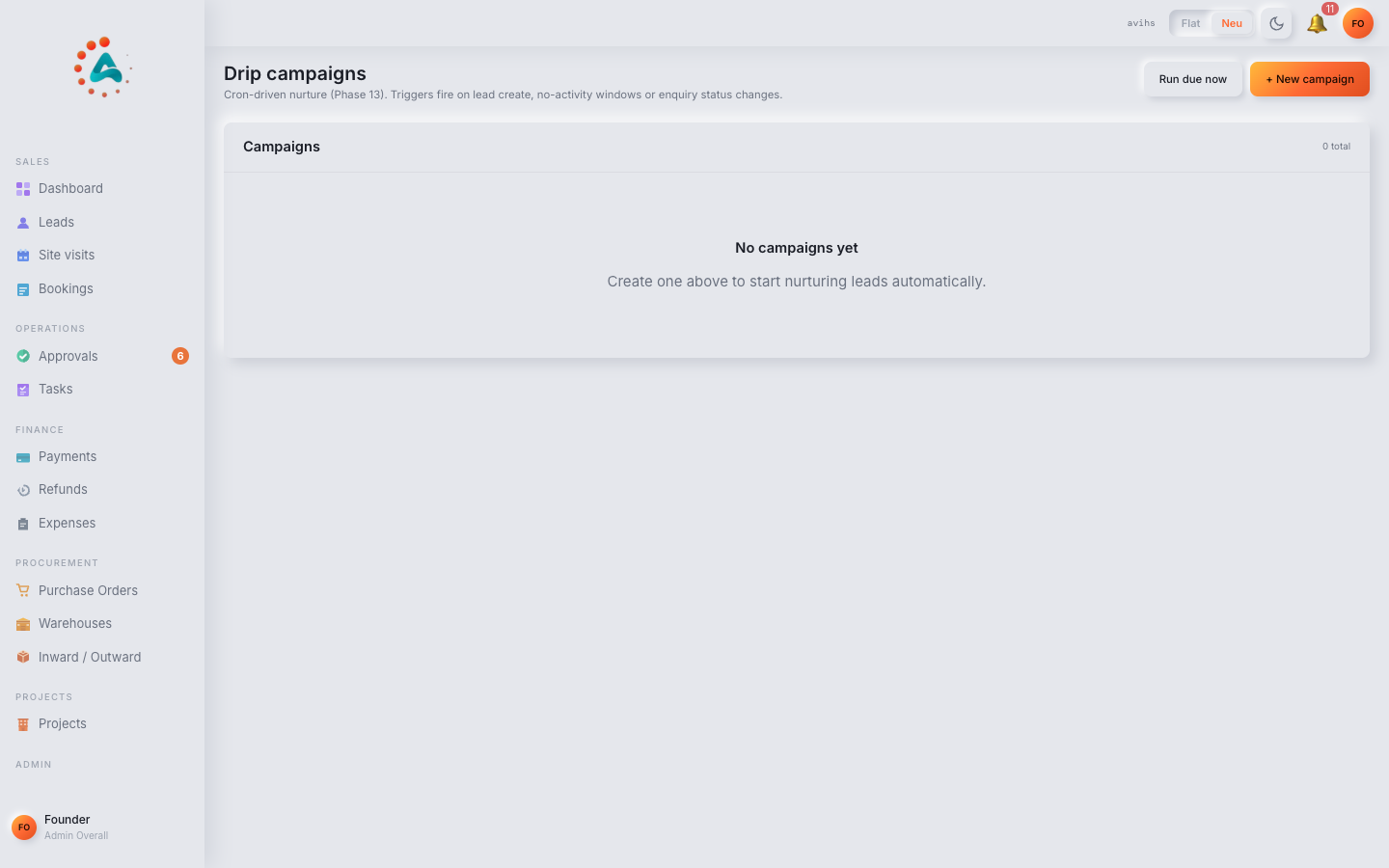
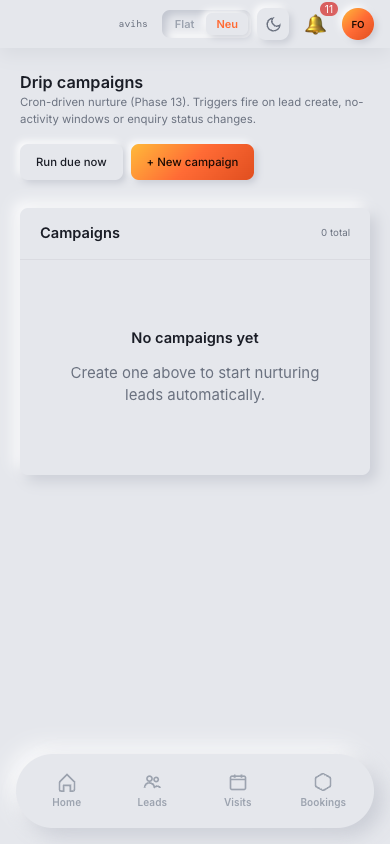
Campaigns broadcast a WhatsApp message to a filtered list of leads or contacts. Use them for new project launches, reactivating cold leads, or inviting prospects to a site visit event.
 Web
Web
 Mobile
4.1 — Campaign overview
Navigate to WhatsApp › Campaigns. The list shows all campaigns with their status, audience size, and delivery metrics.
| Status | Meaning |
|---|---|
| Draft | Campaign is being configured. Not yet scheduled or sent. |
| Scheduled | Campaign is set to send at a future date and time. Can still be edited or cancelled. |
| Sending | Messages are being dispatched. Cannot be edited. |
| Completed | All messages dispatched. Results available. |
| Cancelled | Cancelled before sending started. |
| Failed | Sending stopped due to a WhatsApp API error or account quality issue. |
4.2 — Creating a campaign
-
Go to WhatsApp › Campaigns › + New Campaign.
-
Name the campaign — for internal reference only (not visible to recipients). Use a descriptive name: "Phase 2 Launch — July 2026".
-
Select a template — choose from your mapped approved templates. The template preview is shown. Only Marketing and Utility templates that are approved by Meta and mapped in Settings are available here.
-
Configure the audience — apply filters to define who receives the message (see 4.3).
-
Review the audience count — blink i shows how many leads match the current filters and how many have a valid WhatsApp number. Recipients without a phone number are automatically excluded.
-
Schedule or send — choose to send immediately or schedule for a specific date and time (see 4.4).
-
Confirm — review the summary (template, audience count, send time) and click Launch Campaign. A confirmation prompt appears; campaigns cannot be edited once launched.
4.3 — Audience filters
Filters narrow the campaign to the right leads. Multiple filters combine with AND logic — a lead must match all applied filters to be included.
| Filter | Options |
|---|---|
| Lead stage | New, Contacted, Visit Scheduled, Visit Done, Booked, Lost. Select one or more. |
| Project interest | One or more projects. Targets leads who expressed interest in a specific project. |
| Source | Meta (Facebook/Instagram), WhatsApp, Manual, Referral, CSV Import. One or more. |
| Assigned agent | Limit to leads owned by specific agents. |
| Lead age | Created within the last N days, or before a specific date. |
| Last contacted | Not contacted in the last N days — useful for reactivation campaigns. |
| Follow-up overdue | Leads whose follow-up date has passed without completion. |
4.4 — Scheduling
Timing matters for WhatsApp campaigns. Guidance:
- Best windows: 10 AM–12 PM and 5 PM–7 PM local time. Avoid early morning (before 9 AM) and late evening (after 9 PM) — Meta's quality system penalises high block rates, which spike outside business hours.
- Day of week: Tuesday through Thursday typically see the highest open rates for real estate messaging. Avoid Sunday mornings.
- Volume pacing: If your audience is large (1,000+), schedule across two sessions rather than one burst — this reduces the risk of triggering Meta's rate limiter.
- To schedule, select Schedule for later and pick a date and time. The campaign status moves to Scheduled and can be cancelled or rescheduled until the send time minus 5 minutes.
4.5 — Results & delivery
After a campaign completes, open it to see the delivery report:
| Metric | What it means |
|---|---|
| Sent | Messages dispatched to Meta's API. |
| Delivered | Confirmed received on the recipient's device (two grey ticks). |
| Read | Recipient opened the message (two blue ticks). Requires the recipient to have read receipts enabled. |
| Failed | Could not deliver — number invalid, recipient has blocked the business number, or the number is not on WhatsApp. |
| Opted out | Recipient replied STOP or blocked the number during the campaign window. |
Failed numbers are marked on the lead record. If the failure rate exceeds 20%, review the audience quality — old or manual-entry numbers often have higher failure rates than Meta-captured numbers which are verified at the point of lead form submission.
Meta lead forms
Facebook and Instagram lead ads let prospects submit their details without leaving the platform. blink i pulls these submissions automatically, creates a lead record, and fires the new-lead automation — usually within 30 seconds of submission.
5.1 — Connecting lead forms
Navigate to Settings › WhatsApp & Comms › Meta Lead Forms. The page lists all Facebook Pages and Instagram accounts connected to your Meta Business Account.
-
Connect your Meta account — click Connect Meta. You will be redirected to Meta's OAuth flow. Log in with an account that has admin access to the Meta Business Account. Grant the requested permissions (pages_read_engagement, leads_retrieval, whatsapp_business_management).
-
Select Pages — after authorisation, blink i lists all Pages your account manages. Toggle on each Page whose lead ads you want to sync.
-
Select lead forms — for each connected Page, select which lead forms to pull from. Multiple forms per Page are supported. Forms are listed by name as configured in Meta Ads Manager.
-
Set the default project — leads from this form will be tagged with this project in blink i. If a single form covers multiple projects, use a custom question on the form (see field mapping).
-
Save — blink i immediately tests the connection and fetches the last 24 hours of submissions to backfill any missed leads.
5.2 — Field mapping
Meta lead forms can have standard fields (full name, phone, email) and custom questions. blink i maps form fields to lead record fields. Configure this per-form under Settings › Meta Lead Forms › [Form name] › Field Mapping.
| blink i lead field | Typical Meta field |
|---|---|
| First name | FIRST_NAME (standard) |
| Last name | LAST_NAME (standard) |
| Phone | PHONE_NUMBER (standard) |
EMAIL (standard) | |
| Project interest | Custom question — e.g. "Which project are you interested in?" |
| Budget range | Custom question — e.g. "What is your budget?" |
| City / Location | Custom question or CITY (standard) |
Unmapped fields are saved in the lead's Notes field verbatim so no data is lost. Review unmapped fields regularly and map them if they carry useful information.
5.3 — Auto-capture flow
When a prospect submits a Meta lead form:
-
Meta sends a webhook to blink i within seconds of form submission.
-
blink i creates a lead record — Stage: New, Source: Meta (Facebook) or Meta (Instagram) depending on the placement, assigned to the default agent configured for that form (or unassigned if none).
-
Duplicate check — blink i checks if a lead with the same phone number already exists. If yes, it updates the existing lead's record with any new information rather than creating a duplicate, and logs a note: "Re-submitted via Meta lead form on [date]."
-
New lead automation fires — the WhatsApp auto-reply is sent to the lead's phone number. If the number is not on WhatsApp, the message is marked Failed and no further retry occurs.
-
Agent is notified — the assigned agent receives an in-app notification. If unassigned, the notification goes to the workspace manager.
+919876543210). blink i stores and dials in this format. If a lead is entered manually without the country code, the automation may fail to reach them on WhatsApp. Always include the country code for manual entries.Inbox & opt-outs
When a lead or customer replies to a WhatsApp message, the conversation appears in blink i's inbox. Opt-outs are handled automatically.
6.1 — Conversation inbox
Navigate to WhatsApp › Inbox to see all inbound messages. Conversations are grouped by contact — each thread shows the full message history between the business number and that phone number.
- Unread badge — new replies are shown with an unread count. Assign the thread to an agent to indicate ownership.
- Linked lead — if the sender's number matches a lead in blink i, the lead card is shown alongside the conversation. Click through to open the full lead record.
- Reply window — WhatsApp allows free-form (session) replies within 24 hours of the last inbound message. After 24 hours, only approved templates can be sent.
- Template reply — to contact a lead whose 24-hour window has closed, click Send Template, select a template, and confirm. The conversation is re-opened only if the customer replies.
- Internal notes — agents can add internal notes visible only to the team (not sent to the customer) to keep context on the thread.
6.2 — Opt-outs & compliance
If a recipient replies STOP, blocks the business number, or reports the message as spam, blink i registers an opt-out on that contact. Opted-out contacts are excluded from all future campaign sends and automated messages.
| Action | Effect |
|---|---|
| Reply "STOP" | Contact is marked opted-out. Automations and campaigns skip this number. |
| Block the business number | Meta reports the block to blink i. Same effect as STOP. |
| Report as spam | Reported to Meta. Affects the business number's quality rating. Contact is opted out. |
To re-enable messaging for an opted-out contact, the customer must send any message to the business number — this re-opens the 24-hour window and implicitly opts them back in. Manual overrides of opt-out status are not permitted by Meta's policy.
Full messaging flow
An end-to-end example — from a prospect filling a Facebook lead ad to booking confirmation — showing every automated WhatsApp touchpoint.
-
Prospect submits a Facebook lead form for Project Horizon. Name, phone, and "Which project?" answer captured. Meta sends webhook to blink i.
-
blink i creates the lead — Stage: New, Source: Meta (Facebook), Project: Horizon. Duplicate check passes (new number). Lead assigned to the duty agent.
-
New lead auto-reply fires — template
lead_welcome_v1: "Hi Priya, thanks for your interest in Horizon! Our team will call you within 2 hours. Reply VISIT to schedule a site visit." -
Agent calls and schedules a site visit. Visit is created in blink i. Site visit scheduled automation fires — "Hi Priya, your site visit to Horizon is confirmed for Saturday 26 July at 11:00 AM. Your point of contact is Rahul (+91 98765 43210)."
-
24-hour visit reminder fires — "Hi Priya, a reminder: your Horizon site visit is tomorrow (26 Jul) at 11:00 AM. See you there!"
-
Visit is completed. Agent marks outcome: Interested (Hot), follows up. Lead moves to Visit Done.
-
Booking is created and submitted for approval. Approval workflow runs (see Approvals guide). On final approval, Booking confirmed automation fires — "Hi Priya, your booking BK-0042 for Plot 14A at Horizon has been confirmed. Your first instalment of ₹5,00,000 is due by 30 August."
-
Payment due reminder fires on 30 August — "Hi Priya, your instalment of ₹5,00,000 for BK-0042 (Horizon, Plot 14A) is due today. Please transfer and share the UTR with your relationship manager."
-
Payment is recorded by the finance team. Payment received automation fires — "Hi Priya, we have received your payment of ₹5,00,000 for BK-0042. Thank you. Your next instalment of ₹5,00,000 is due on 30 September."